
Related Resources
- Selling a Gift Card (University) – Point of Sale
- Gift Cards Setup (Documentation)
This lesson covers how to sell gift cards on the OrderPort Webstore.
Page Contents
Enable E-Gift Cards on the Webstore
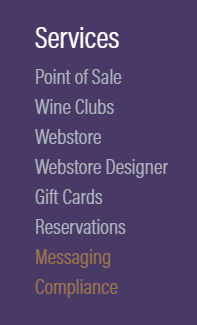
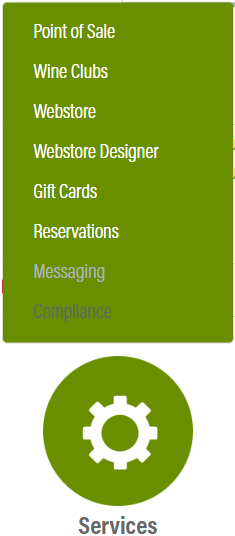
The first thing you must do is ensure e-gift cards are enabled on your webstore. Go to the Gift Cards module, which is under the Services category.
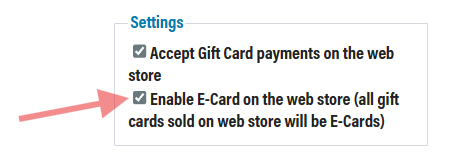
In the settings, ensure the second checkbox is enabled.
Create Gift Card Products
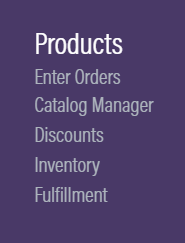
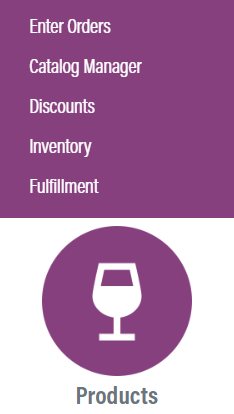
Next, go to the Catalog Manager. The Catalog Manager is in the Products category.
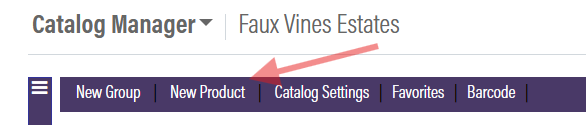
To create a gift card item, click New Product.
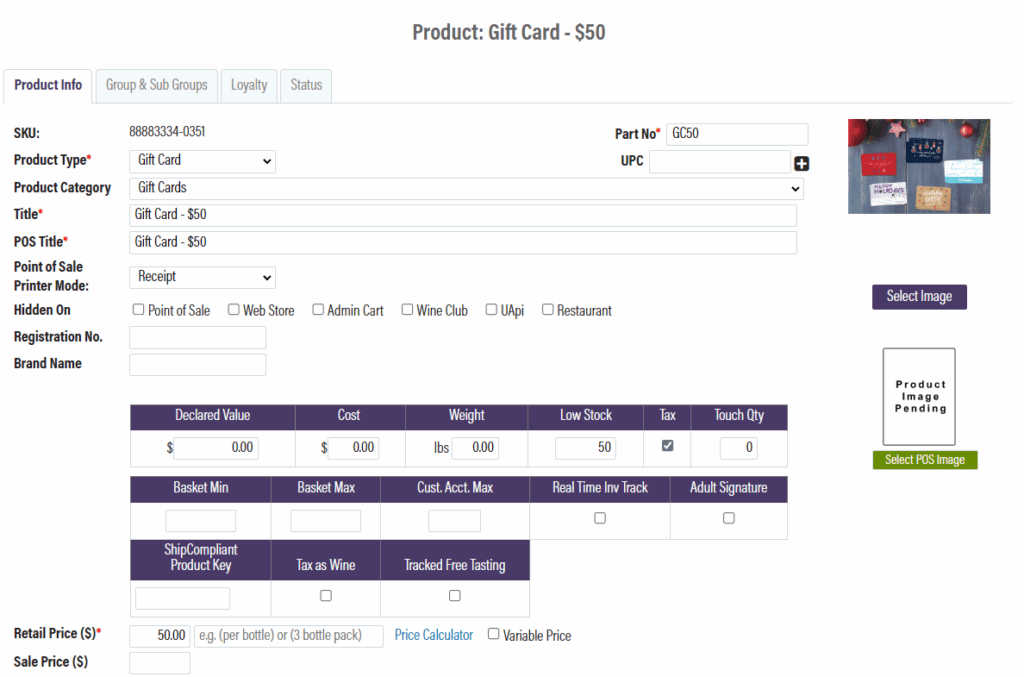
Change the product type to Gift Card, then fill out the product information. The Title should include the card balance, and the Retail Price should be set to the same number. You cannot sell variable price items on the Webstore.
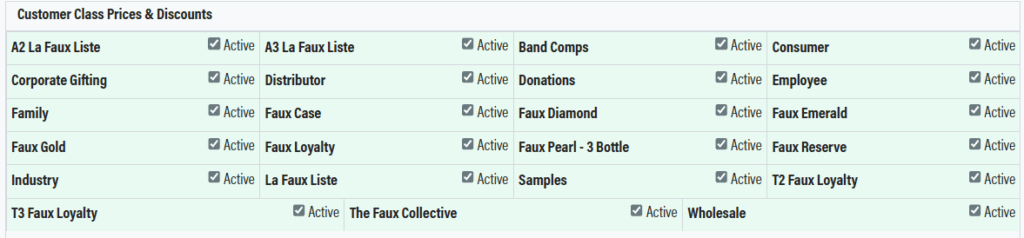
Under the Customer class prices & discounts, set the product to active for all classes. Any classes where the product is not active will not see the product listed on the webstore.
Save the changes, then go to the Status tab, and set the product to Active.
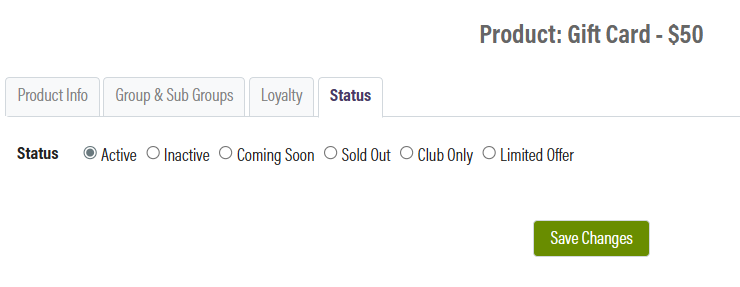
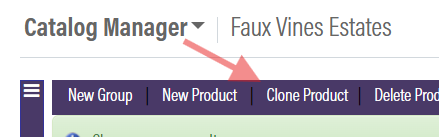
To quickly create gift cards for the other price points, clone the product, and update the title and retail price. Make sure to set the product status to Active for all clones.
Create Gift Card Group
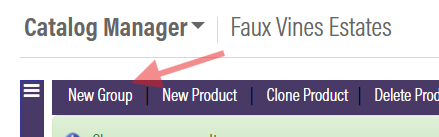
To display the products on your webstore, you must create a webstore group and add the gift cards to the group. Click New Group, then select Webstore.
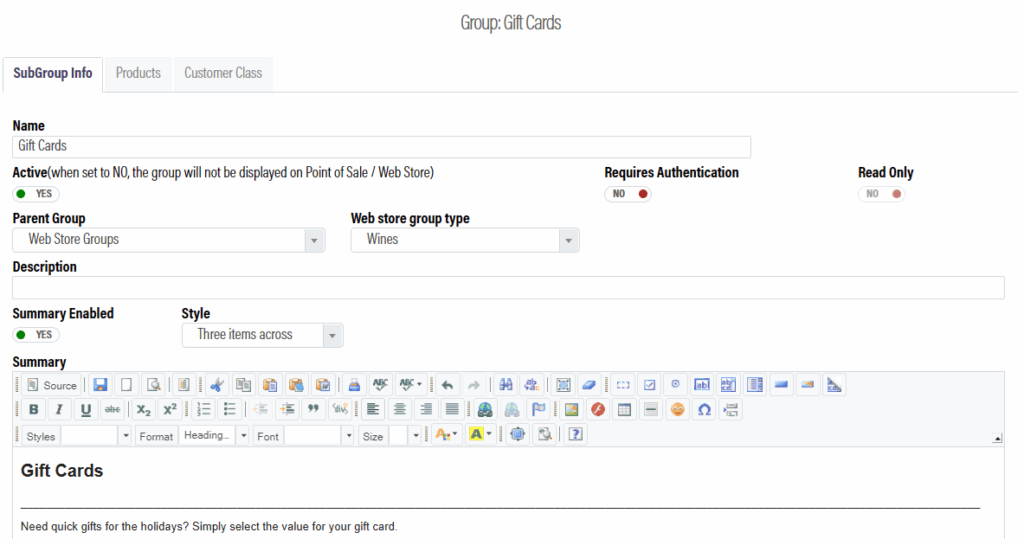
Name it, add an optional description, then save.
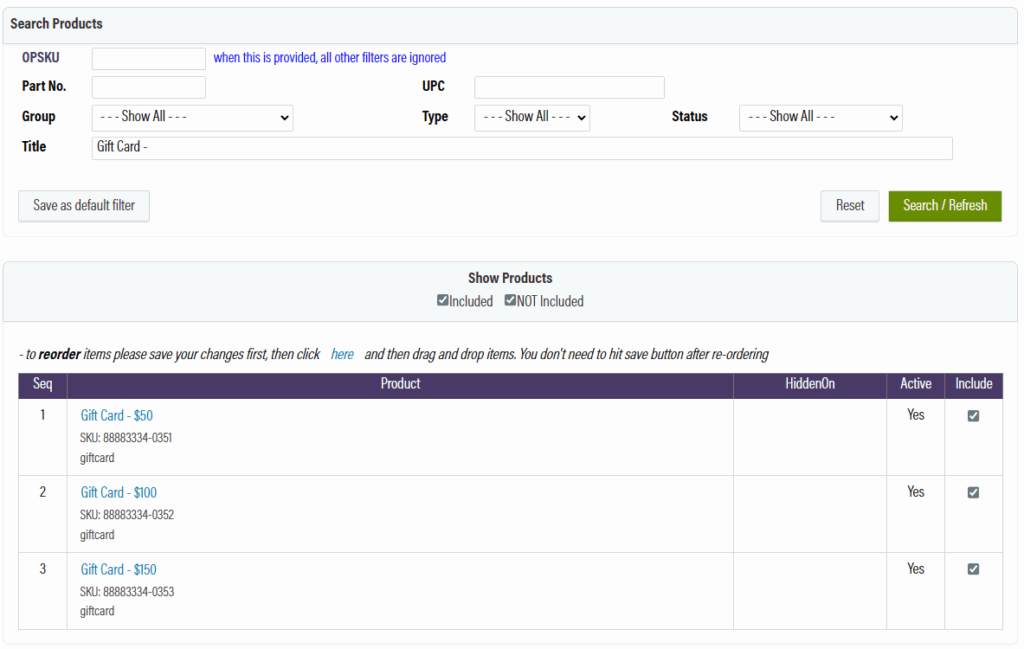
Next, go to the products tab, search for your gift card products, then select Not Included. Add the gift card products, then save the changes. To add new products to the group, make sure to select “NOT Included” under the show products filter.
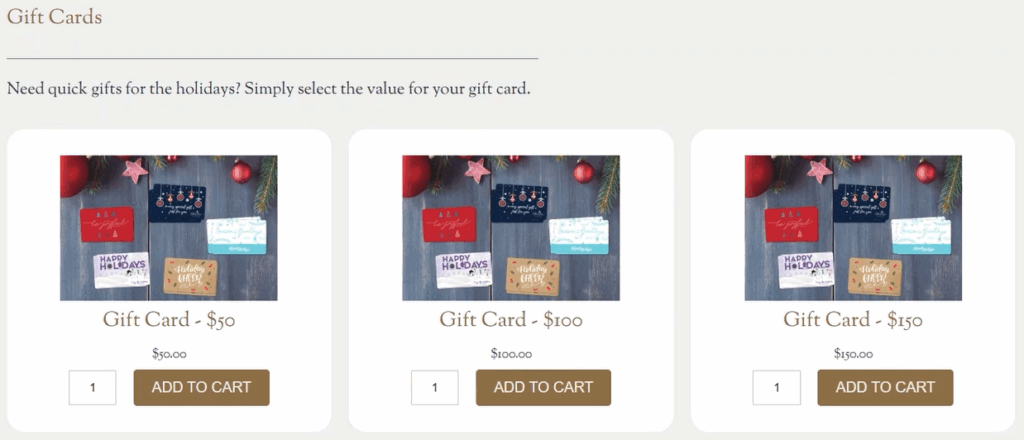
The gift cards are now available for sale on your webstore.
Activating the Gift Card
The gift card is not available for use until you capture the funds used to purchase the card. Go to the Fulfillment module, then push the order through.

When an order is completed with a gift card, the customer’s email receipt will contain a button to request the gift card number. When clicked, they will receive the Gift Card Details notification.
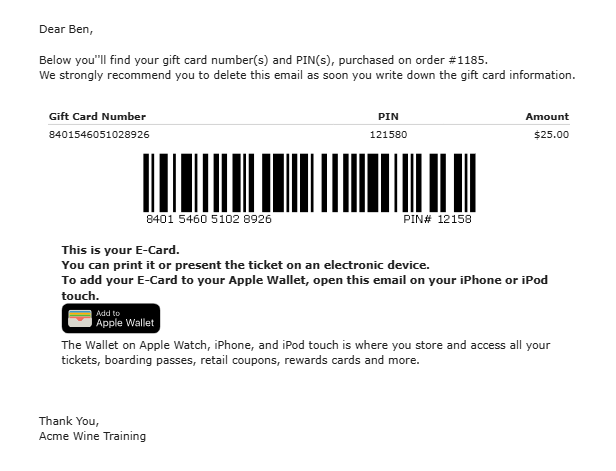
You can customize this notification in the Marketing module. Go to the notifications section, then search for Gift Card Details.
